cs1.6正版steam服务器搭建(windows环境)
条评论cs1.6正版steam服务器搭建,顾名思义,只支持正版steam的cs1.6客户端加入游戏,因为正版的cs1.6服务器会带有steam的认证过程,非正版的cs1.6客户端是无法通过认证和加入游戏的。
本篇文章将在windows的环境下搭建正版steam的cs1.6服务器。
环境需求
一台具有独立外网IP的服务器,可以租用阿里云或者腾讯云的,比较稳定,配置要求如下:
- CPU:2核
- 内存:4GB
- 网络:1MB/s(支持10人),5MB/s支持(32人),建议选择2MB/s及以上的
- 硬盘:10GB以上
- 系统:windows 10 (当然也可以是windows server)
windows server的服务器,刚租用时,需要手动关闭防火墙,以及安装VC运行时库。
Microsoft Visual C++ Redistributable VC运行时库最新版本
官方下载 | 备用下载如果不关闭防火墙,至少要开放官方要求的几个端口。
- 27015 UDP (游戏传输协议, pings),具体需根据服务器运行的端口port来决定。
- 27015 TCP (远程管理协议)
- 27020 UDP (HLTV协议)
- 26900 UDP (VAC服务)
下载steamcmd
steamcmd是用来下载安装cs1.6服务器的,当然它还有其他用途,我们这里不再展开说明。
官方下载(https://developer.valvesoftware.com/wiki/SteamCMD:zh-cn)
备用下载(https://www.aliyundrive.com/s/CYuusTAj41h)
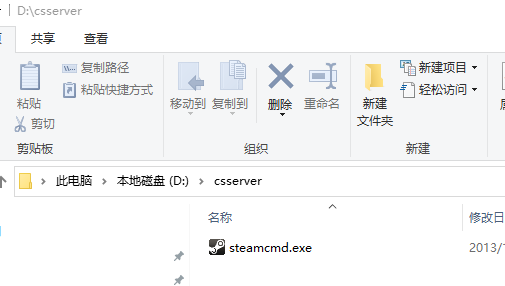
下载后,在D盘创建名为csserver的文件夹(可以自定义名称,最好是英文且没有空格或者特殊符号),并把steamcmd.exe文件放置在该文件夹内。
安装cs1.6服务器程序
这里通过steamcmd来进行在线安装,当然,你也可以下载别人安装并打包好的。
在D:\csserver目录中,按住shift+鼠标右键,然后选择在此处打开 powershell 窗口或者在此处打开 cmd 窗口,打开命令行窗口。
在命令行窗口中,执行steamcmd.exe文件,等待更新完成。
1 | PS D:\csserver> .\steamcmd.exe |
出现Loading Steam API...OK和Steam>说明成功运行了。
配置服务端程序安装路径
接着,输入force_install_dir ./cs1.6/配置服务端程序安装目录。
1 | Steam>force_install_dir ./cs1.6/ |
登录你的steam账户
然后登录你的steam账户,输入命令login wudics(此处wudics替换成你的ID),接着输入登录密码以及验证码,完成登录。
1 | Steam>login wudics |
出现OK字样说明登录成功。有些教程使用login anonymous以匿名账户登录,在目前版本中是无法完成后续步骤的,因为新版本的steamcmd在安装cs1.6服务端程序时,需要正版用户的ID验证通过才能正常下载。
配置cs1.6服务端程序下载
输入app_set_config 90 mod cstrike完成配置
1 | Steam>app_set_config 90 mod cstrike |
执行下载
输入app_update 90 validate,开始下载服务端程序
1 | Steam>app_update 90 validate |
当出现Success! App '90' fully installed.字样,说明已经安装完成了,我们进入D:\csserver\cs1.6(其中cs1.6是在force_install_dir ./cs1.6/设置的)就可以看到已经安装的服务端程序了。
最后输入exit退出steamcmd.exe程序。
1 | Steam>exit |
运行cs1.6服务端程序
使用命令行运行
继续使用命令行工具,进入D:\csserver\cs1.6文件夹
1 | Steam>exit |
然后执行命令.\hlds.exe -console -game cstrike +port 27015 +map de_dust2 +maxplayers 10,运行cs1.6服务端程序。
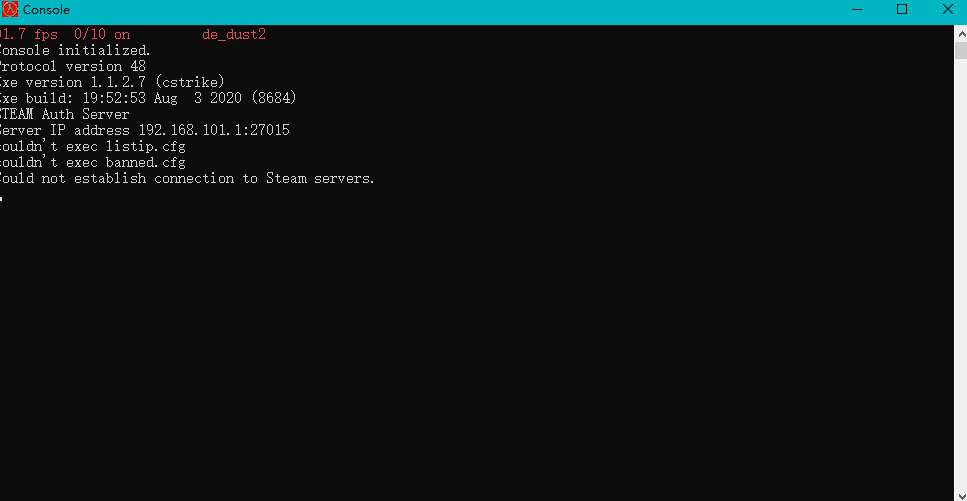
双击hlds.exe直接运行
双击hlds.exe运行服务器程序会更加方便管理,但是不能使用一些高级复杂的启动参数。
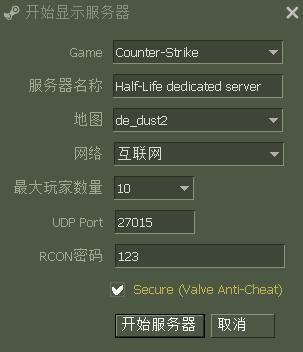
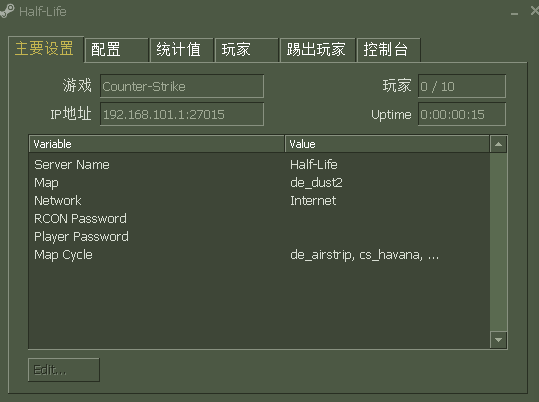
启动服务端程序闪退问题
可能是因为之前装有cs1.6盗版客户端,修改了注册表,我们需要把注册表修复回来。
使用win+R快捷键,打开运行窗口,输入regedit打开注册表。
依次展开路径计算机\HKEY_CURRENT_USER\SOFTWARE\Valve\Steam\ActiveProcess。
然后把SteamClientDll的值设置为空即可。
或者,我们在D:\csserver\cs1.6\文件夹下,新建一个后缀名为.bat的批处理文件,把修复注册表的脚本,以及启动hlds.exe程序的脚本同时写到这个批处理文件里。
1 | reg add "HKCU\Software\Valve\Steam\ActiveProcess" /v SteamClientDll /t REG_SZ /d "" /f |
之后每次双击运行该bat文件即可。
加入游戏服务器
该方式搭建的steam正版cs1.6服务器,需要使用steam正版的cs1.6客户端才能够进入,如果你是在阿里云/腾讯云租用的服务器搭建,那么就可以在cs1.6的互联网游戏列表中刷出你的服务器,然后加入游戏即可。
又或者,你可以通过connnect xxx.xxx.xxx.xxx:27015控制台命令加入游戏,其中xxx.xxx.xxx.xxx是你的服务器IP地址。
打包好的服务端
参考文献
Ubuntu搭设CS1.6游戏服务器
Linux 架设 CS1.6 服务器教程
cs1.6服务器搭建
linux系统架设cs1.6服务器图文教程(兼容47/48协议的non-steam)
V2拓海cs1.6服务器架设系列 - 哔哩哔哩视频教程